Testing a Website in Safari on Linux
Published 24/08/2024
Contents
1 Overview
If you have been merrily developing and testing your website on Firefox and Chromium, and are now testing it on a WebKit-based browser (Safari or any iOS/iPadOS browser) for the first time, get ready to embark on a seemingly endless ‘bug safari’[1][1]: Unfortunately, this type of bug safari is significantly less enjoyable than the one you might have undertaken as a child, and can, if you are not careful, drive you to the edge of insanity.. Try to contain your hatred towards Apple[2][2]: A company which, despite its multi-trillion-dollar market cap, is too stingy to commit sufficient resource to the development of WebKit, and which, worst of all, forces its crappy browser engine down everybody’s throat! Apple mandates that any iOS browser must use WebKit as its browser engine. Europe’s Digital Markets Act is now forcing Apple to allow other browser engines on iOS and iPadOS, however, as usual, Apple is testing the limits of malicious compliance. and focus on finding workarounds for the bugs you encounter. This requires access to a WebKit-based browser with developer tools. There are several options:
Epiphany: Epiphany (or Gnome Web) is a WebKitGTK-based Linux browser. It has the same developer options as Safari and is a convenient option to quickly find out what your website might look like on WebKit. Unfortunately, it suffers from a number of WebKitGTK-specific issues which are not present in base-WebKit. Since Epiphany’s market share is likely the size of a rounding error, you probably don’t want to spend your time working around those issues (but it is still worth reporting them).
Running macOS on a virtual machine: It is possible to run macOS (Ventura) on a virtual machine. Step-by-step instructions for setting this up are provided in Sec. 2. This option is not without issues, though. Due to the lack of VM-specific graphics drivers on macOS, graphics performance will be abysmal. I also found that with an emulated graphics device, the
-webkit-backdrop-filterCSS property was incorrectly rendered in Safari (either resulting in a grey background or an opaque background that should be transparent). This issue could presumably be fixed by GPU passthrough (which would also drastically improve performance), however this requires you to have a compatible GPU. Unfortunately, my Intel Iris Xe graphics are not on this list, so I wasn’t able to try this. However, if you have a compatible GPU, this is likely the best option.Online cross-browser testing tools: Tools like BrowserStack allow you to test your website in a multitude of browsers. There are two main downsides to this approach. Firstly, local testing requires executing a closed-source binary to make your locally running website available to BrowserStack servers. Secondly, once the trial period expires, the cheapest subscription option costs $29/month, which is likely more than you want to spend on Safari testing if you are working on a personal project. In an enterprise setting, however, this is likely the best option.
Running Safari on Linux via Wine: This isn’t really an option, but I’m listing it here anyway in case you came across this suggestion on an outdated webpage. Apple used to make Safari available on Windows, however no updates have been released since 2010.
For my own web development activities, I have converged on the following workflow:
Find browser bugs in Epiphany. Search the WebKit Bugzilla to find out if this is a known issue. If not, create a test case reduction and file a report on https://bugs.webkit.org, making it clear that you are using WebKitGTK.
If you have a macOS VM available, test the test case reduction on Safari. If the behaviour is as observed on Epiphany, chances are it is not WebKitGTK-specific and you should implement a workaround. If no bugs are observable, no action is required. If you encounter different bugs (likely due to the VM’s graphics limitations), proceed to the next step.
Wait for someone to run the test case and comment on your bug report. If the bug is limited to WebKitGTK, they will surely let you know. Alternatively, if you are impatient, create an account on BrowserStack and open the test case reduction in Safari during the trial period.
If the bug is not WebKitGTK-specific, implement a workaround for it.
2 Running macOS on a virtual machine
This section documents the steps one would (hypothetically)[3][3]: Running macOS on non-Apple
hardware violates macOS’ EULA. need to follow to get macOS
Ventura running on Arch Linux on a virtual machine. As mentioned above,
without GPU passthrough (requiring a supported
GPU), graphics performance will be abysmal (at a resolution of 4K,
attemtping to play ant video will result in a framerate of around 0.5
fps) and the -webkit-backdrop-filter CSS property won’t
render correctly in Safari[4][4]: if someone has any ideas on how to fix this without
requiring the purchase of a supported GPU, please let me
know!.
2.1 Basic installation
We will be using this GitHub repository, which includes QEMU configuration files as well as various scripts, e.g. to download the macOS image.
The only packages I needed to install on Arch were
qemu-desktop, virt-manager, as well as
dmg2img from the AUR. Otherwise, simply follow the
guide.
2.2 Fixing Safari blank screen bug
I encountered an issue with Safari, which would frequently show me a blank screen instead of the website content. This problem goes away when focusing a different window on top of Safari. The issue is documented here. To fix this, simply update Safari. Click on the half-eaten apple in the top-left corner of your screen, and choose ‘System Settings…’. Then click on ‘Software Update Available’ (right underneath the account entry in the left pane) or alternatively use the search bar to search for ‘Software’. Scroll all the way to the bottom of the now opened right pane, and under ‘Other Updates Available’, click on ‘More info…’. A window showing a possible Safari update will show up. Click the ‘Install now’ button. After the installation finishes, this issue should go away.
2.3 Changing resolution
By default, the VM’s screen resolution is rather low. To fix this, we
need to change the OVMW resolution. For resolutions above 2560x1440, we
first need to increase the size of QEMU’s framebuffer, otherwise those
higher resolution options won’t be available. Open
OpenCore-Boot.sh and make the following change:
-  -device vmware-svga
+  -device vmware-svga,vgamem_mb=64
Next, launch the VM and furiously press the Esc key right afterwards, while the boot logo is still visible. The OVMF menu should then appear. Go to ‘Device Manager’, then ‘OVMF Platform Configuration’, then set the desired resolution next to ‘Change Preferred Resolution for Next Boot’. For my system, I chose 3840x2160.
The
documentation advises to change the OpenCore resolution as well (by
editing OpenCore/config.plist and then regenerating the
.qcow2 file, which on Arch Linux requires the installation
of the libguestfs package), however this didn’t actually
seem to make any difference on my system, so this step may be
skipped.
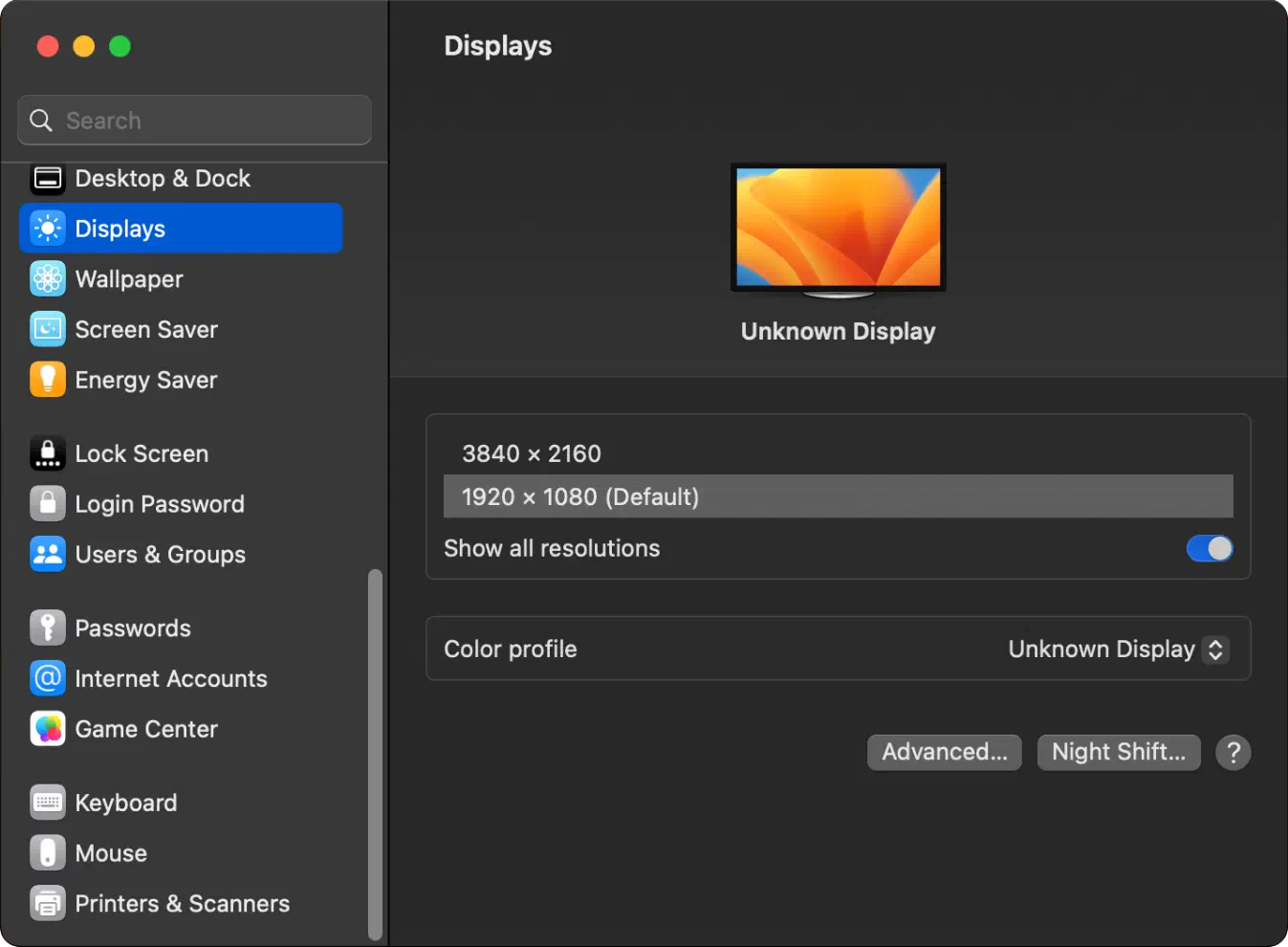
Once the VM has been restarted and macOS has launched, navigating to ‘Settings’ and choosing ‘Display’ in the left pane should reveal the view in Fig. 4. Despite the currently active resolution being stated as 1920x1080, the actual screen resolution is 3840x2160. Selecting the ‘3840x2160’ option results in a tiny cursor and impractically small UI elements. As it turns out, Apple’s understanding of screen resolutions is different from the rest of the world’s. The ‘1920x1080’ option doesn’t mean 1920x1080 as one might expect, it means instead “this is the resolution a LoDPI screen would need to have for UI elements to have the same size”, or equally, actual resolution divided by UI element scaling factor.
2.4 Reversing scroll direction
If you happen to be used to a an ‘unnatural’ scroll direction (scrolling direction is same as scrollbar rather than webpage movement direction), you will probably want to disable ‘natural scrolling’ on macOS. To do this on Ventura, go to ‘System Settings’, scroll all the way to the bottom in the left pane, and click on ‘Mouse’. In the right pane, deactivate ‘Natural Scrolling’[5][5]: I first tried to do this by searching for ‘natural’ in the search bar, however this yielded no results!.
2.5 Getting started with web development on Safari
Accessing the host’s
localhostfrom the guest: By default, QEMU uses the gateway IP address10.0.2.2, so the host network will be available on that address. Simply type10.0.2.2:<PORT>into Safari’s address bar, replacing<PORT>with the port on which your web server is available.Enabling developer options in Safari: Unfortunately, opening developer tools isn’t as simple as pressing Ctrl / Command + Shift + C or right-clicking and selecting ‘Inspect’, as is the case in good browsers. To access developer options, we need to enable them first. In the Safari menu, click on ‘Safari’ and select ‘Settings…’. In the subsequent window, go to the ‘Advanced’ tab, and enable the checkbox ‘Show features for web developers’ all the way at the bottom. The web inspector can then be opened by pressing the equivalent of the Command + Option + I keys: Super + Alt_R + I[6][6]: For some reason, only my right Alt key worked as an Option key, but not the left one..