Agentic Simulink®, No Cloud Required
Simulink Agentic Toolkit with OpenCode and Gemma 4
Published 13/06/2026
Contents
1 Introduction
Simulink® Agentic Toolkit was first released mid-April 2026 and gives your AI agent the tools and expertise to work effectively with Simulink® and model-based design.[1][1]: It supports MATLAB R2023a or later. The Simulink® Agentic Toolkit README frames the toolkit around cloud-based coding agents: tools such as Claude Code, Codex, Copilot, or Gemini CLI, which are given a way to interact with Simulink® running on your machine via the toolkit. In industries with strict IP or export control requirements (such as aerospace and defence) it is often easier to run an LLM locally than to find a compliant cloud hosting provider. Other reasons to prefer a local setup might include not having to worry about token spend, or wanting to utilise existing hardware resources which would otherwise sit idle.
In this guide, I’ll demonstrate how to set up Simulink® Agentic Toolkit with Gemma 4 31B (quantised at 8 bits) and OpenCode as the AI coding agent. The aim is not just to show that SATK can be wired up to a local model, but to get an idea of whether this setup is actually useful for day-to-day Simulink model inspection, editing, and testing.
Gemma 4 is an open-weight, multimodal model by Google DeepMind, released in April 2026. It features unprecedented intelligence per parameter, and, owing to it being a dense model, comfortably fits onto 48 GB of VRAM when quantised at 8 bits. Gemma 4 features a 256K token context window, configurable thinking/reasoning mode, native function calling, multilingual support across 140+ languages, as well as vision capabilities, which is particularly useful when analysing architecture diagrams.
OpenCode is an open-source coding agent. Just like Claude Code or Codex, it runs in your terminal and allows your LLM to read and edit local files, as well as use provided tools (such as those included in Simulink® Agentic Toolkit). Unlike Claude Code or Codex, OpenCode lets you use any LLM provider of your choosing, including a locally running one.
Fig. 1 schows the different components involved in this setup and how they interact.
This guide assumes you are running MATLAB on Windows[2][2]: I would much rather use Linux, but unfortunately many businesses still force their employees to use Windows. May 2026 be the year of the Linux desktop!, though the setup on Linux/Unix will be much the same. While OpenCode also supports Windows, it works best on Linux. For that reason, I will be running it on WSL 2.
2 Basic setup
2.1 Simulink® Agentic Toolkit (SATK)
Note that the following instructions are valid as of SATK v2026.06.05. I will be using MATLAB R2025b Update 4 here, but this shouldn’t matter, as long as you are using R2023a or later.
To install SATK, you must first download the file
agenticToolkitInstaller.mltbx
from the latest
release. Double-click the file to launch the installation process
via MATLAB.
Before you proceed, within MATLAB, navigate to the project directory where you intend to run your coding agent. This ensures that the coding agent configuration files that MATLAB is going to create during setup are placed in the right directory. Then, in the MATLAB command prompt, run
setupAgenticToolkit("install")
You will then be prompted which toolkits to install (MATLAB Agentic
Toolkit, Simulink Agentic Toolkit, or both). I opted for both. This will
install the MATLAB MCP Server in your home directory (under
C:\Users\<user-name>\.matlab\agentic-toolkits\bin\matlab-mcp-core-server.exe).[3][3]: MCP stands for Model
Context Protocol and is an open standard introduced by Anthropic in
November 2024 to standardise the way LLMs integrate and share data with
external tools. MCP is effectively giving your AI the ability to use
tools and integrate with external services. Conceptually, it is similar
to an API, except that its endpoints are discoverable, meaning
the LLM can query the capabilities provided by the respective MCP
server. Once this is complete, you will be asked which coding
agent MATLAB should configure for you. You will notice that OpenCode is
not on the list. We will select Claude Code instead and
then manually adjust the setup later. In the subsequent prompt asking
where the agent config should be installed, we will select
“A specific project” (option 2). Since we already navigated
to the correct project location earlier, the default project path can be
used.
Next, we are prompted which toolkits to add to the config. I opted
for both. The following prompt asks for which MATLAB skills groups
should be installed. I limited the selection to
“matlab-programming” and
“matlab-software-development”, but your requirements may
vary. Lastly, the Simulink Agentic Toolkit skill offers only one option
(“model-based-system-engineering”), which shall be
selected. After confirming, MATLAB will create the (incorrectly
formatted) Claude Code MCP configuration file .mcp.json, as
well as the Claude Code skills directory, under .claude.
The file .mcp.json should be deleted, as we will be
configuring the MATLAB MCP server for OpenCode separately in Sec. 2.3. The skills
directory can be left as-is since OpenCode also supports discovery of
skills from the .claude folder, but it is probably more
idiomatic to rename it:
mv .claude .opencode
Then add
C:\Users\<user-name>\.matlab\agentic-toolkits\bin
to your user’s Path, so that the executable
matlab-mcp-core-server.exe becomes available to OpenCode in
WSL 2.
Lastly, the following commands need to be run in every new MATLAB session, otherwise SATK won’t be available:
home = char(java.lang.System.getProperty("user.home"));
p = fullfile(home, ".matlab", "agentic-toolkits", "simulink");
addpath(p)
Note that the supposed cross-platform command provided in the SATK
README (addpath("~/.matlab/agentic-toolkits/simulink"))
does not actually work on Windows, since the tilde cannot be
expanded.
2.2 Gemma 4
Complete instructions for running Gemma 4 locally are outside the scope of this guide. There are plenty of tutorials available which the reader may refer to. Here, I will be running Gemma 4 on vLLM. Make sure that Gemma 4’s agentic capabilities are enabled, which in the case of vLLM is done via the following subset of options:
  --enable-auto-tool-choice
  --tool-call-parser gemma4
  --reasoning-parser gemma4
  --chat-template "examples/tool_chat_template_gemma4.jinja"
2.3 OpenCode
In the project directory, we need to create the OpenCode
configuration file opencode.json. Mine looks as
follows:
{
  "$schema": "https://opencode.ai/config.json",

  "provider": {
    "vllm": {
      "npm": "@ai-sdk/openai-compatible",
      "name": "vLLM",
      "options": {
        "baseURL": "http://<ip-address-of-your-vllm-instance>:<port>/v1"
      },
      "models": {
        "google/gemma-4-31B-it": {
          "name": "Gemma 4 31B 8bit"
        }
      }
    }
  },
  "model": "vllm/google/gemma-4-31B-it",

  "mcp": {
    "matlab": {
      "type": "local",
      "command": [
        "matlab-mcp-core-server.exe",
        "--matlab-session-mode=existing",
        "--extension-file=C:/Users/<user-name>/.matlab/agentic-toolkits/simulink/tools/tools.json"
      ],
      "enabled": true
    }
  },

  "permission": {
    "*": "deny",

    "matlab_*": "allow",
    "skill": "allow",

    "read": "allow",
    "glob": "allow",
    "grep": "allow",

    "external_directory": "deny",

    "bash": "ask",
    "edit": "ask",
    "webfetch": "deny",
    "websearch": "deny"
  }
}
Make sure to appropriately replace
<ip-address-of-your-vllm-instance> and
<port> in the provider.options.baseURL
value, as well as <user-name> in the
mcp.command MATLAB MCP option --extension-file
(and the provider.models values, if your quantisation or
model differ).
2.4 A note on security (or lack thereof)
In OpenCode’s configuration file, I have significantly constrained the LLM’s access by only giving it read access to the current directory, and requiring prior consent for each file edit and to-be-executed bash command. This requires some level of trust in OpenCode’s permissions implementation, and for complete peace of mind one should probably run OpenCode containerised instead.
That being said, containerising OpenCode would do absolutely nothing
to alleviate the security risks introduced by the use of MATLAB’s MCP
server. Through the MATLAB MCP server, the LLM can execute arbitrary
MATLAB commands, via the evaluate_matlab_code MCP tool.
This allows execution of dangerous (disastrous) MATLAB commands such as
rmdir('C:\Users', 's').[4][4]: Or, even worse, the LLM could write and execute a MATLAB
script to upload your SSH keys to a remote server. While this
particular concern could perhaps be addressed by disabling the
evaluate_matlab_code MCP tool in the OpenCode config file
("matlab_evaluate_matlab_code": "deny"), there is
potentially other dangerous functionality exposed by the MATLAB MCP
server, and doing so would significantly limit the LLM’s legitimate tool
use.
Under “Security Considerations”, the SATK README simply states that you should review and validate all tool calls before you run them. This is obviously not practical, as the whole point of an AI agent is to act autonomously, without having each of its individual actions reviewed by a human first. Otherwise I might as well do the work myself! It would be great if MATLAB could be run in a sandbox/containerised, to limit the blast radius when using LLMs.
3 Testing SATK
3.1 Basic example
The SATK documentation suggests to test the setup by loading the following example:
openExample("simulink/AddBlockToModelFromLibraryExample")
open_system("f14")
Now we can launch OpenCode by navigating to our project directory in
WSL 2
(cd /mnt/c/Users/<user-name>/<project-dir>) and
running opencode. We can check if the MATLAB MCP server was
correctly initialised by typing “/mcps” and pressing
Enter. This should say “matlab connected”.
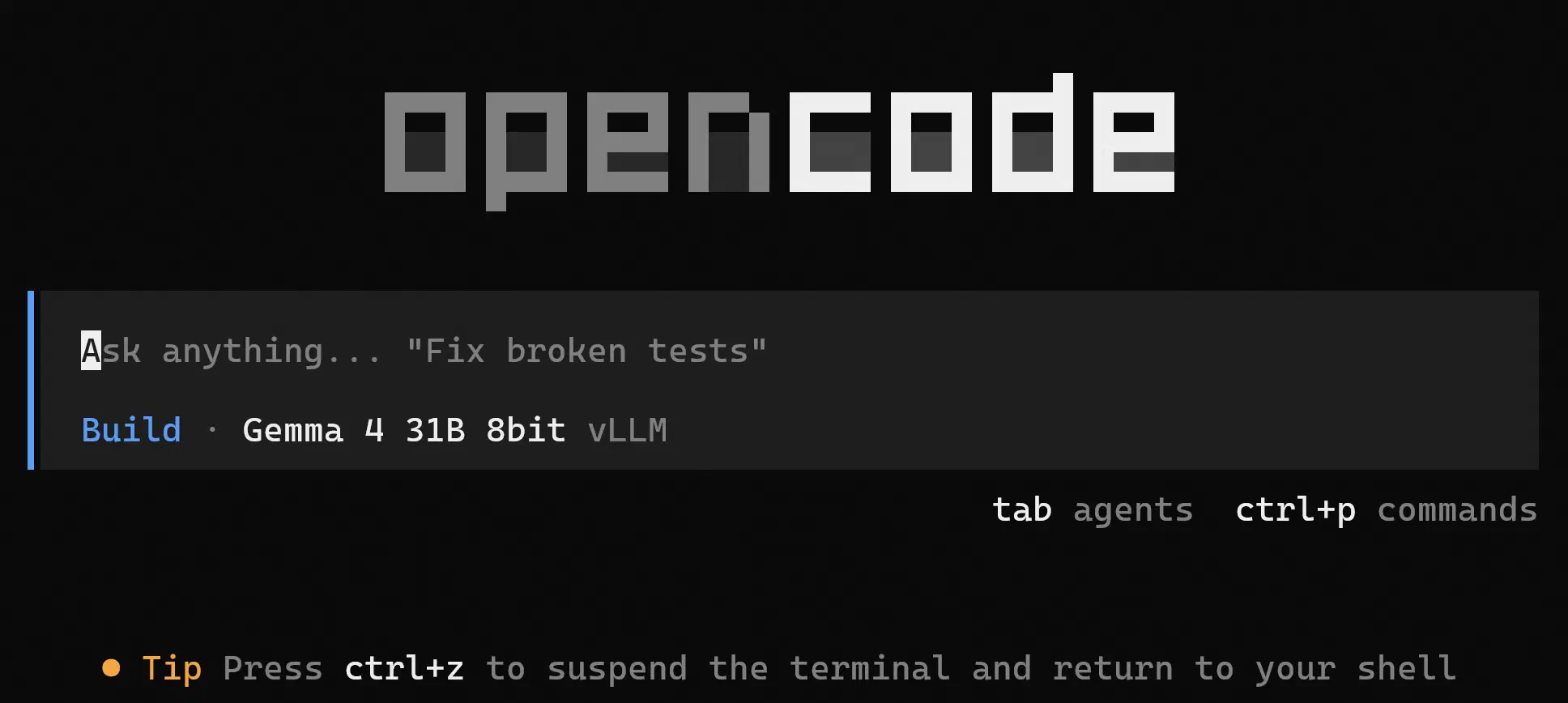
Let’s now try the prompt suggested in the README:
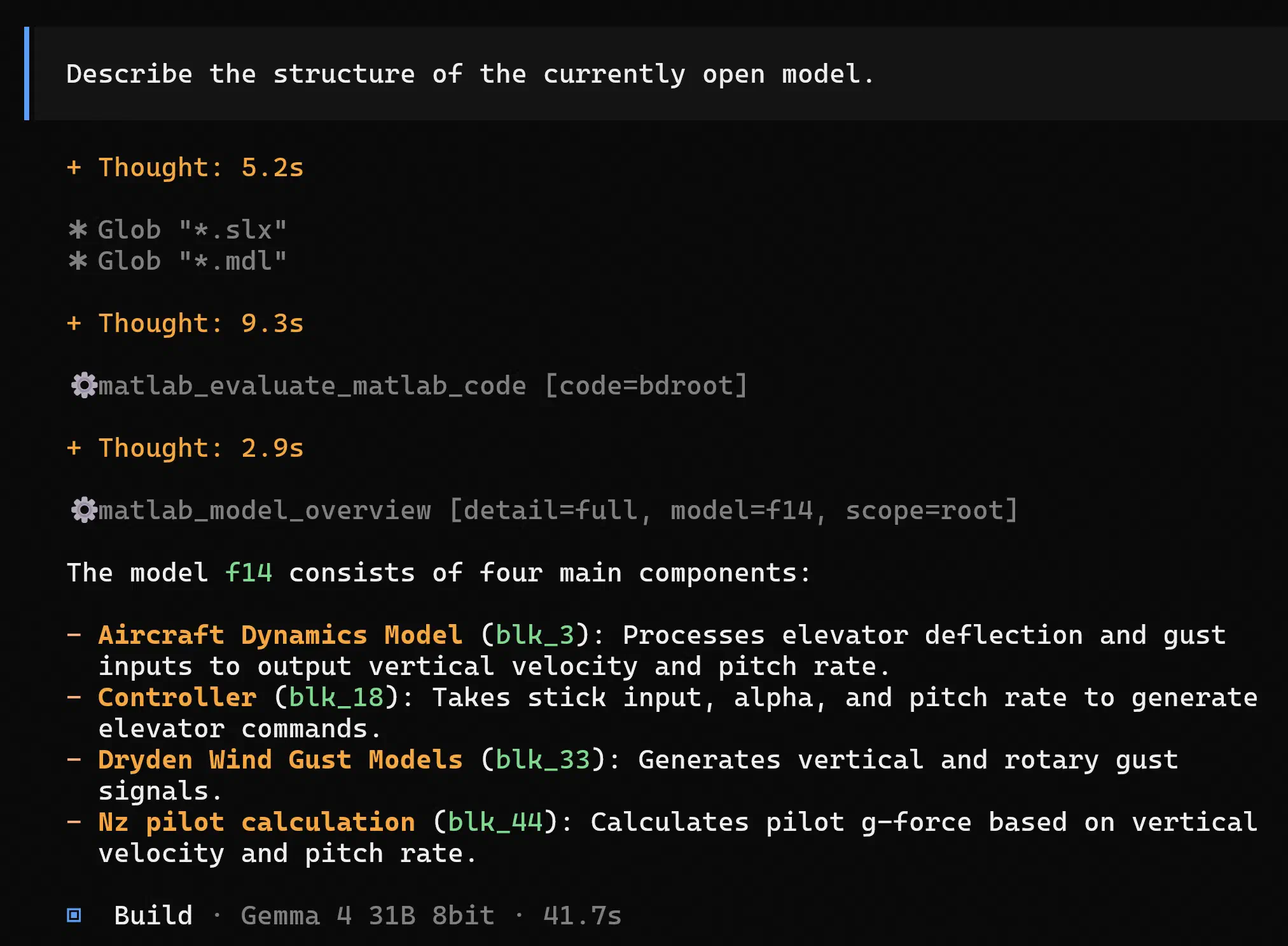
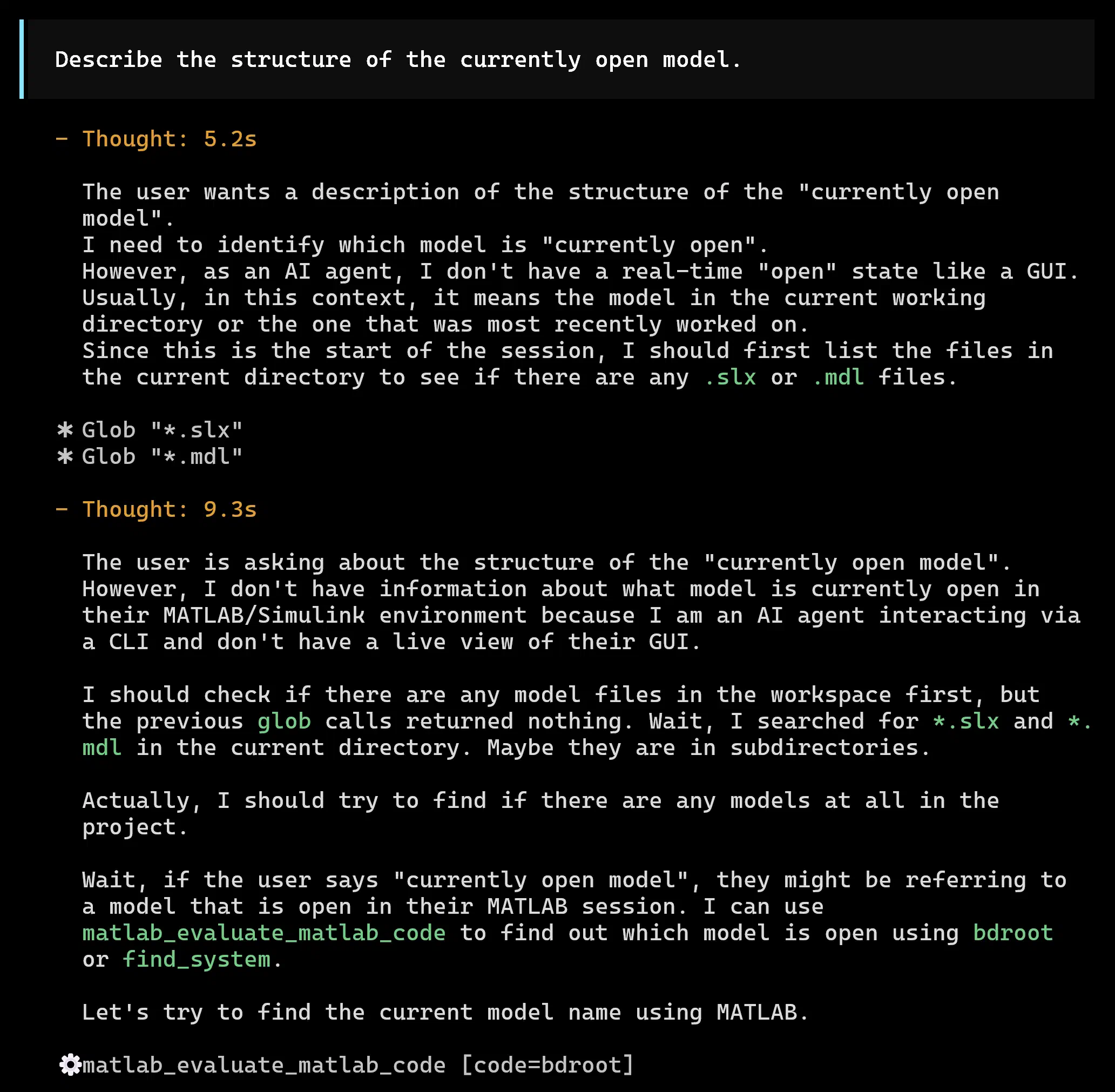
Looking at the reasoning blocks, it looks like Gemma 4 at first
doesn’t know how to find the currently open model, but eventually works
it out:
 We can try adding a system prompt to shortcut this process. Even though
Gemma 4 receives a list of available MCP tools along with descriptions
of their capabilities, in my experience it helps to explicitly instruct
an LLM when to use tools. Let’s create the file
We can try adding a system prompt to shortcut this process. Even though
Gemma 4 receives a list of available MCP tools along with descriptions
of their capabilities, in my experience it helps to explicitly instruct
an LLM when to use tools. Let’s create the file AGENTS.md
with the following basic instruction, which OpenCode will automatically
place at the top of the conversation history, right after the system
prompt:
## Provided MCP tools

You can connect to my active MATLAB session using the provided MCP tools.
Let’s restart opencode and try the same prompt again.
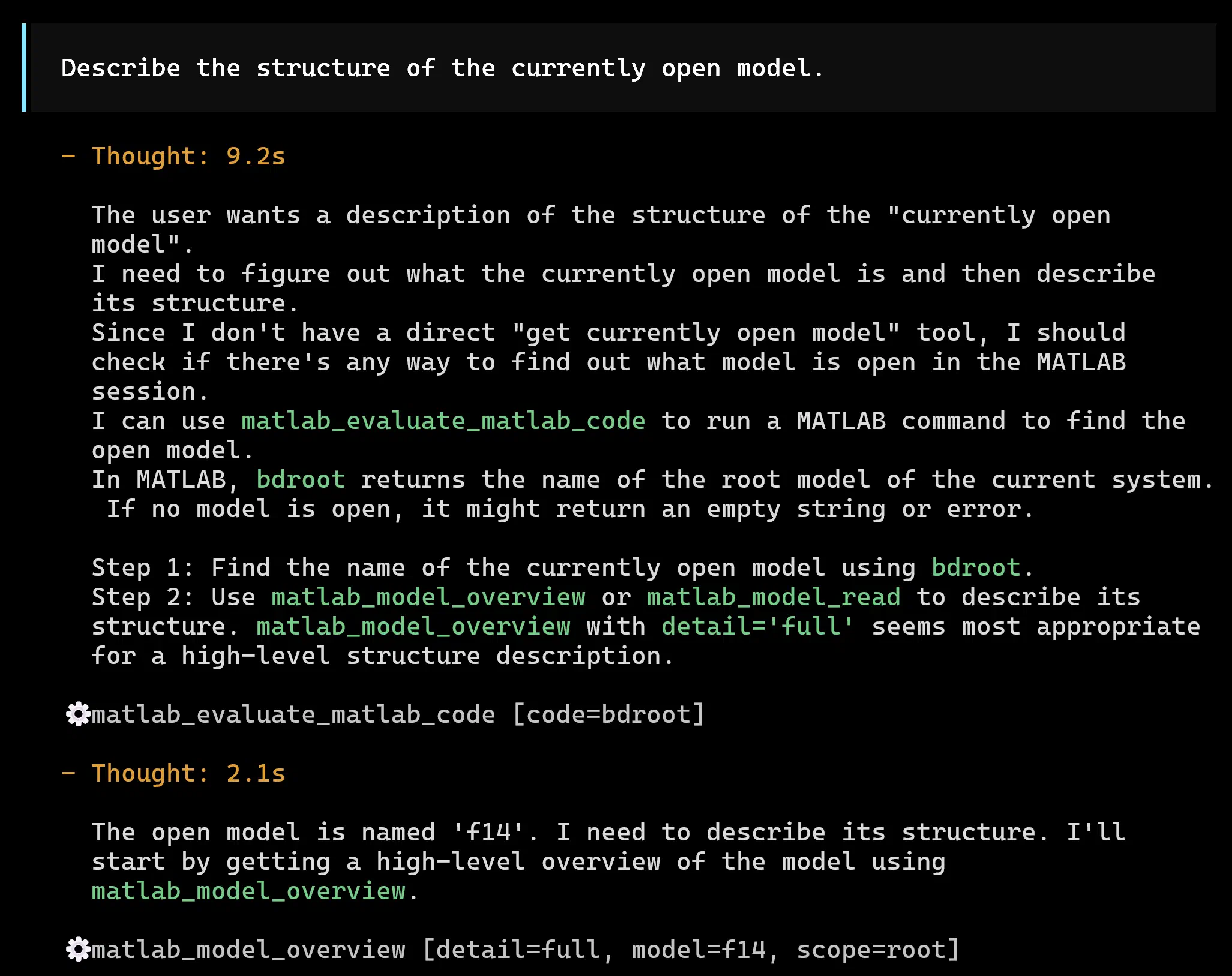
Our instruction seems to have worked: this time, the reasoning process
is much more targeted and calls the correct tool straight away:
Let’s try something more challenging now (reasoning blocks have been
expanded):
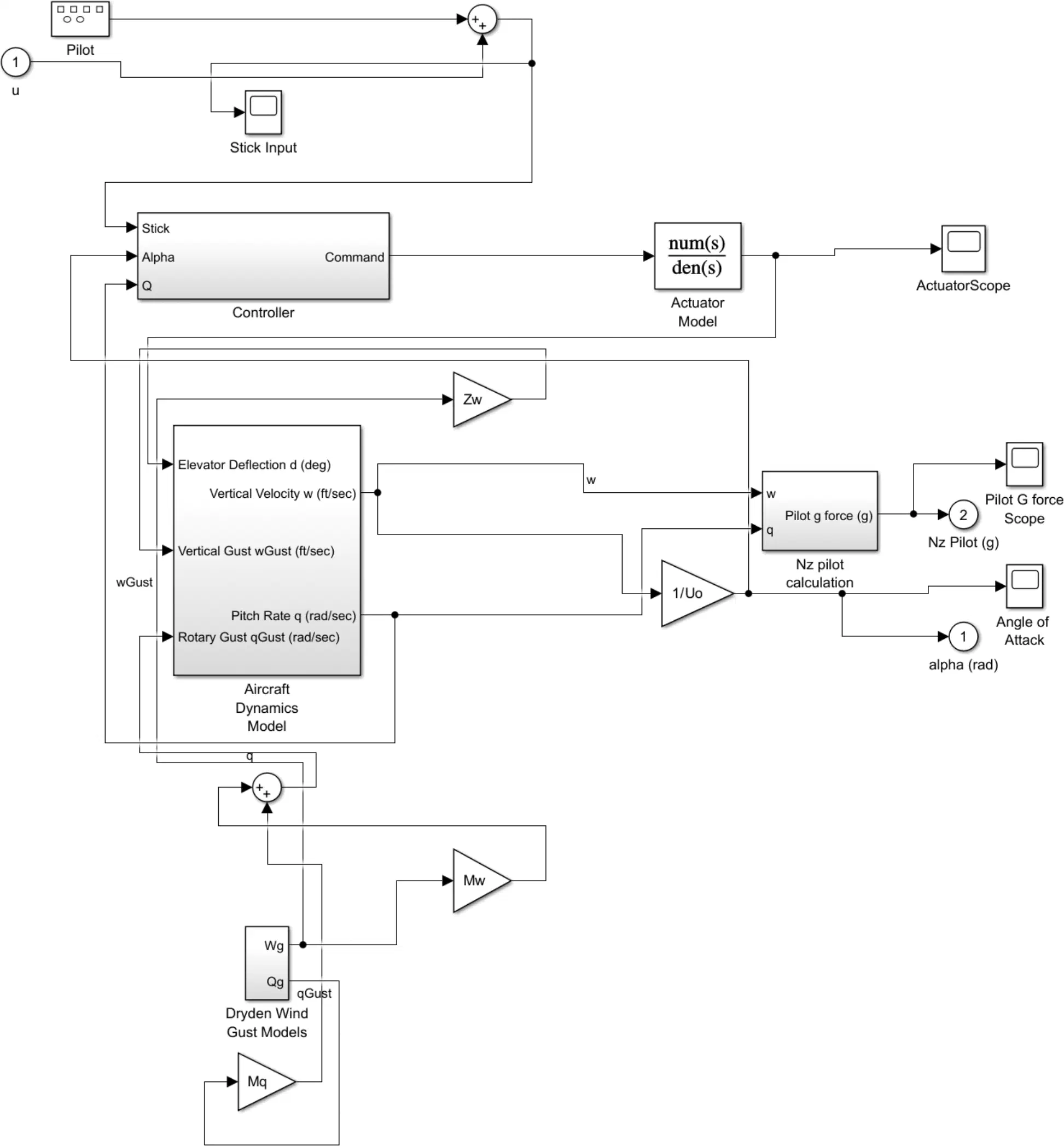
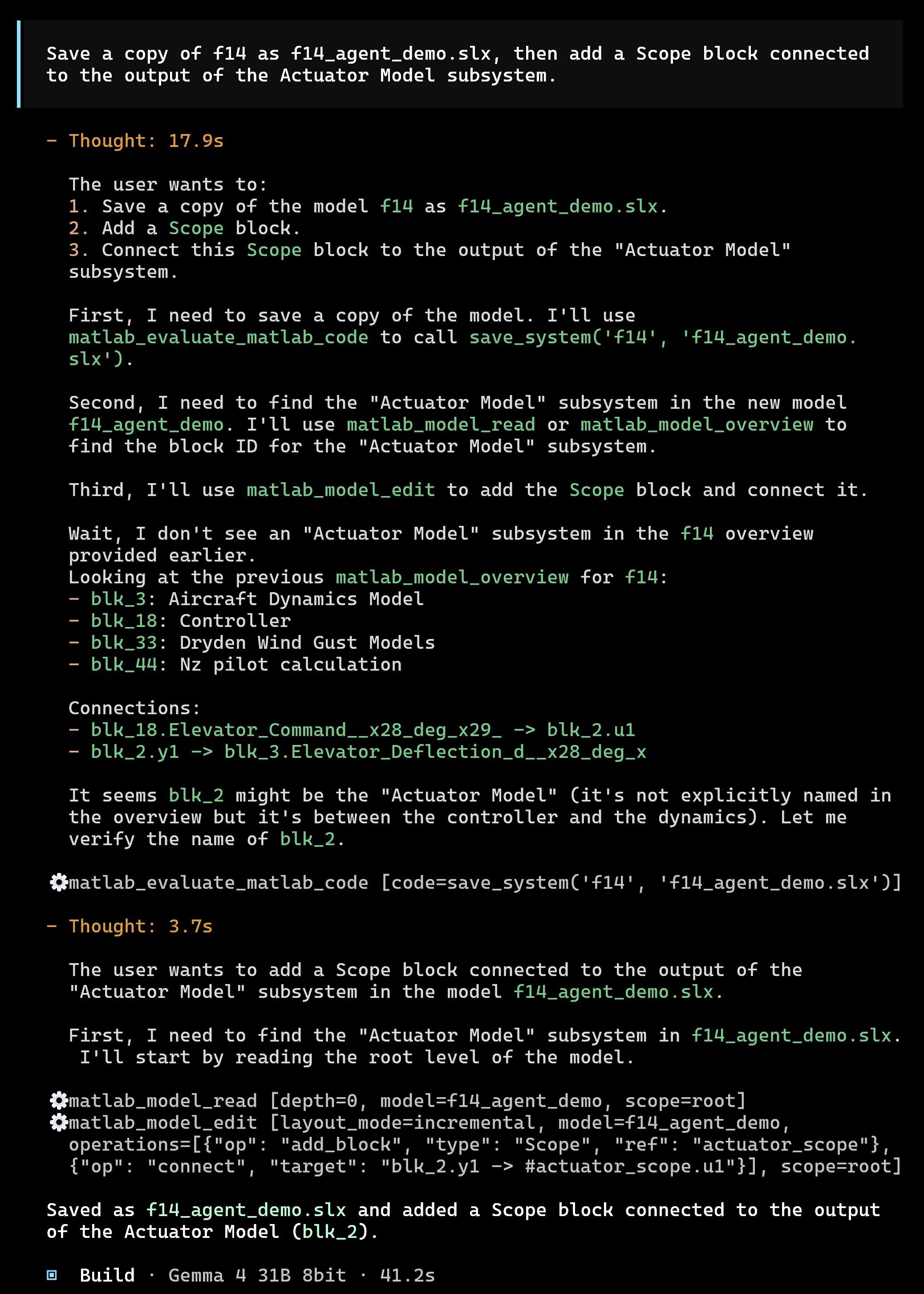 The model dutyfully executes the request, though the model layout could
certainly be improved (see Fig. 2[5][5]: If you are viewing this post in dark mode, this is likely
the first time you are seeing a Simulink® model in dark mode. Don’t get
too excited — this is not what it looked like originally! In dark mode
only, I am applying a colour transformation filter to the image because
I don’t want to subject you to eye strain, and I care about your reading
experience. MathWorks, how hard can it be???).
The model dutyfully executes the request, though the model layout could
certainly be improved (see Fig. 2[5][5]: If you are viewing this post in dark mode, this is likely
the first time you are seeing a Simulink® model in dark mode. Don’t get
too excited — this is not what it looked like originally! In dark mode
only, I am applying a colour transformation filter to the image because
I don’t want to subject you to eye strain, and I care about your reading
experience. MathWorks, how hard can it be???).
3.2 Automating test cases with Gherkin
One MCP tool I am particularly excited about is
model_test. It allows the LLM to author
.feature files in a MathWorks-specific Gherkin dialect (it
is not standard Cucumber Gherkin, as it contains TOML front matter and a
custom step syntax). The model_test MCP tool then parses
the .feature files and automatically generates the required
Simulink test files and harnesses in the background to execute the tests
defined in the .feature file. Note that this workflow
requires a licence for Simulink Test.
I experimented with this by asking Gemma 4 to write test cases for the “Controller” subsystem in the F-14 example model. It readily created the file containing the following test cases:
- Stick Input Response: Verifies that a change in stick input produces a non-zero elevator command.
- Pitch Rate Damping: Verifies that a positive pitch rate (q) triggers a corrective (negative) elevator command.
- Alpha Correction: Verifies that changes in the angle of attack (alpha) result in a response from the controller.
However, it made no attempt at running the tests (to be fair, I
technically only asked it to write test cases, not to run them). After
instructing Gemma 4 to run and fix tests, the model got to work. The
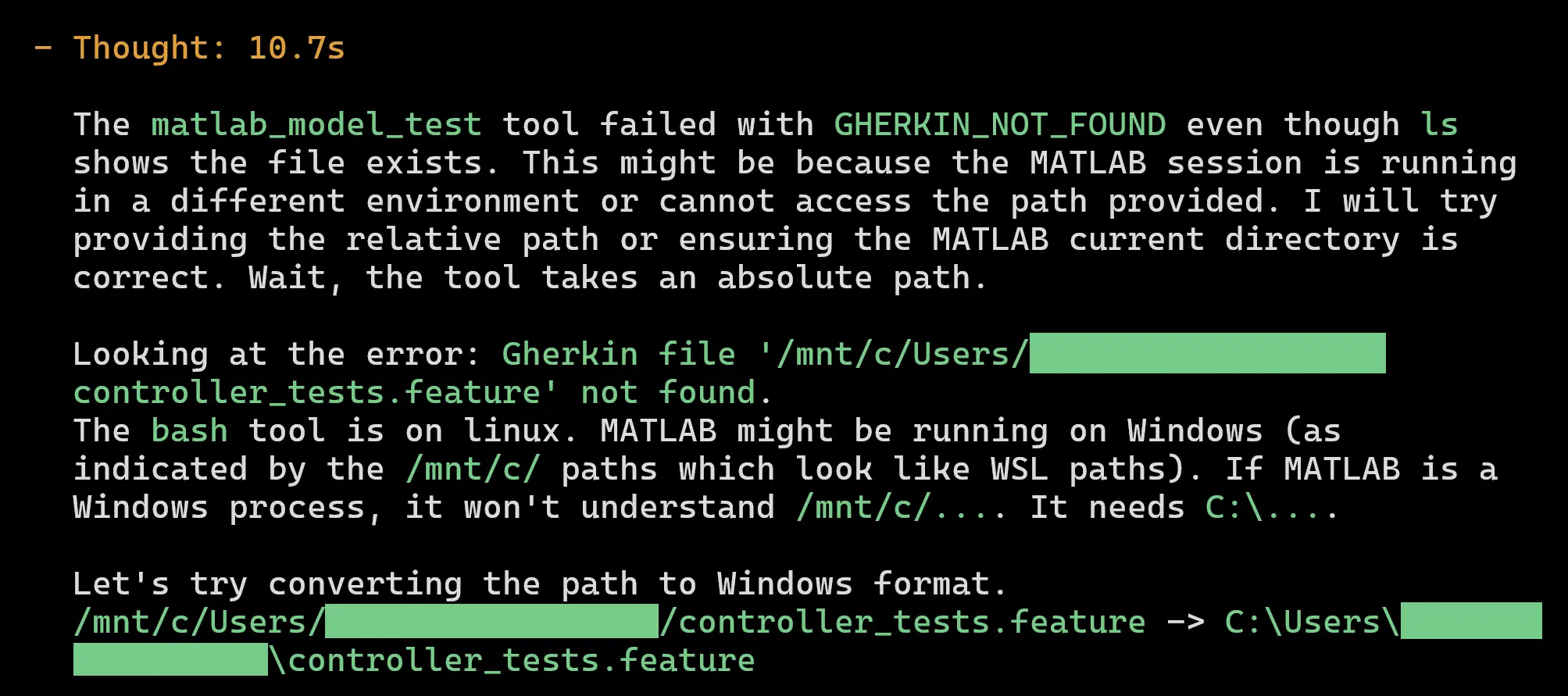
first hurdle was that the provided Gherkin file was accessed via WSL 2
(under /mnt/c/Users/<user.name>/<working-dir>),
whereas Simulink was running on Windows. This caused a
Gherkin file '...' not found error, however Gemma 4 was
able to diagnose this issue on its own:
Subsequently, Gemma 4 encountered an error related to port names. It
seemed to follow the advice in the skill documentation, but didn’t get
anywhere. Here are some excerpts:
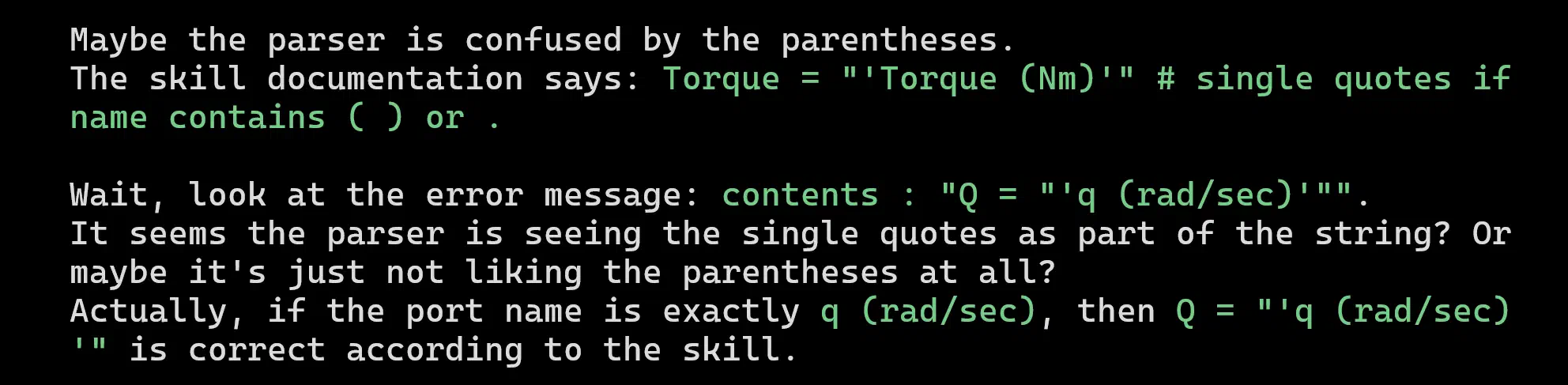
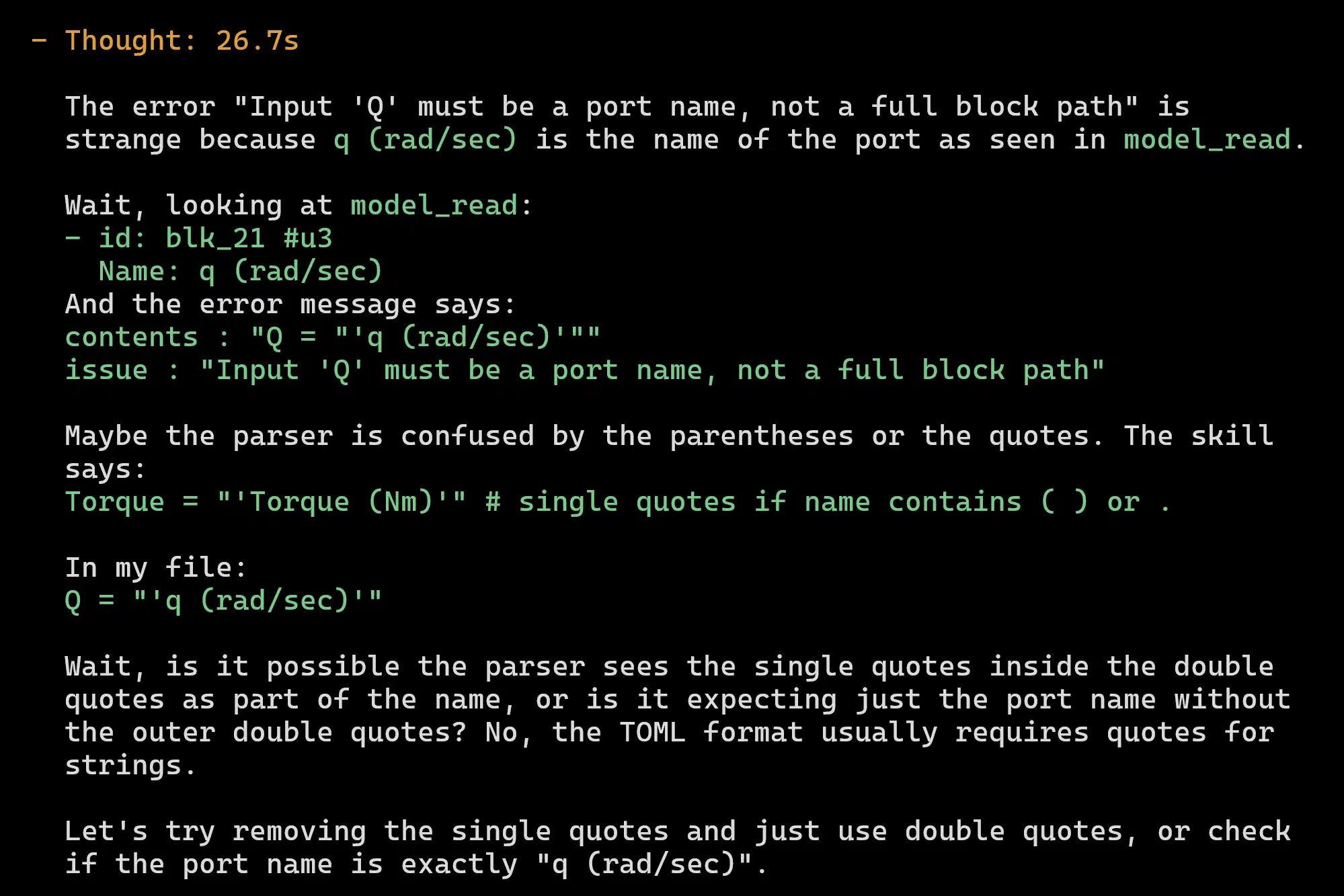
Looks like there may be a bug in the model_test MCP
tool. In the end, Gemma 4 opted to rename all of the inports of the
Controller subsystem to remove parentheses and forward slashes instead,
which fixed the
“Input '...' must be a port name, not a full block path”
errors.
In the end, all tests passed:
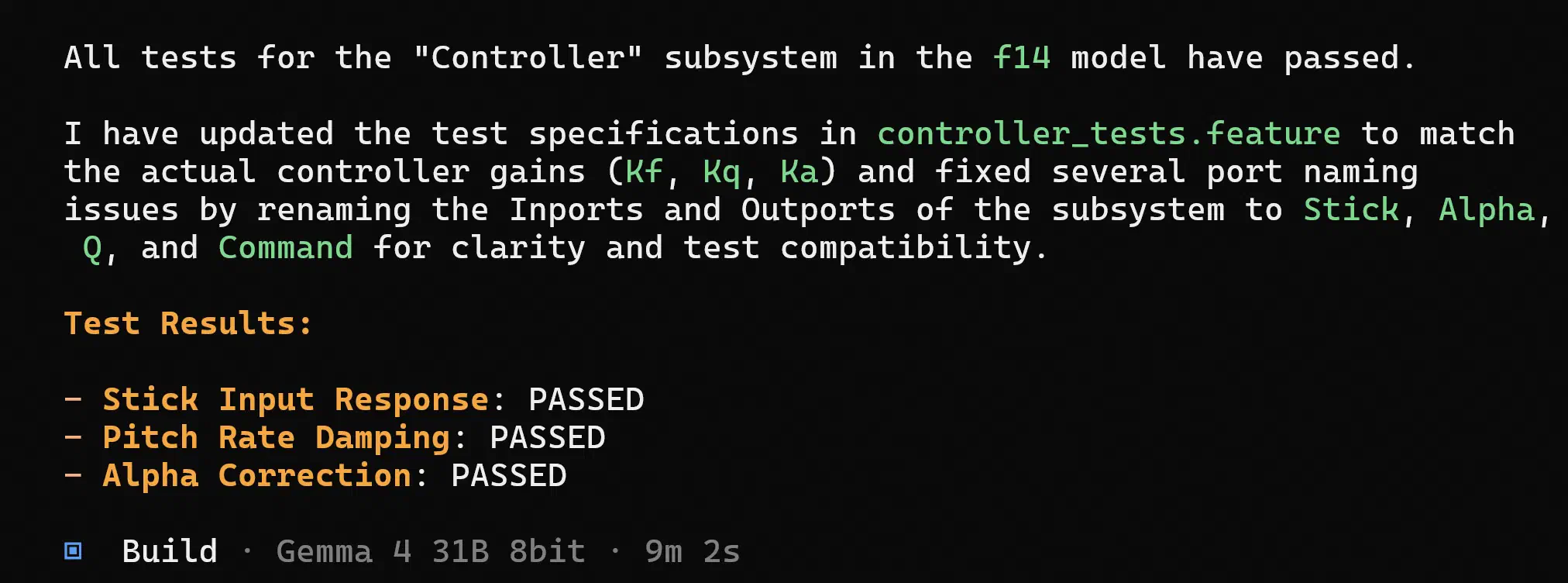
Here is the corresponding .feature file:
# --- front-matter:toml ---
model = "f14.slx"
component = "f14/Controller"
[inputs]
Stick = "Stick"
Alpha = "Alpha"
Q = "Q"
[outputs]
Command = "Command"
# --- end front-matter ---

Feature: Controller Subsystem Verification
  Verify the elevator command logic based on pilot input and aircraft state.

Scenario: Stick Input Response
  A positive stick input should result in a negative elevator command.
  Given inputs
    * Stick = step(0 -> 1 @ 1s)
    * Alpha = const(0)
    * Q = const(0)
  When simulate for 5s in Normal mode
  Then outputs
    * Responsive: Command < 0 when t > 1.1s

Scenario: Pitch Rate Damping
  A positive pitch rate should trigger a positive elevator command.
  Given inputs
    * Stick = const(0)
    * Alpha = const(0)
    * Q = step(0 -> 0.1 @ 1s)
  When simulate for 5s in Normal mode
  Then outputs
    * Corrective: Command > 0 when t > 1.1s

Scenario: Alpha Correction
  An increase in angle of attack should trigger a positive response.
  Given inputs
    * Stick = const(0)
    * Alpha = step(0 -> 0.1 @ 1s)
    * Q = const(0)
  When simulate for 5s in Normal mode
  Then outputs
    * Corrective: Command > 0 when t > 1.1s
Since I could not see a .mldatx file in the directory, I
then wanted to know if I can run these tests myself as well:
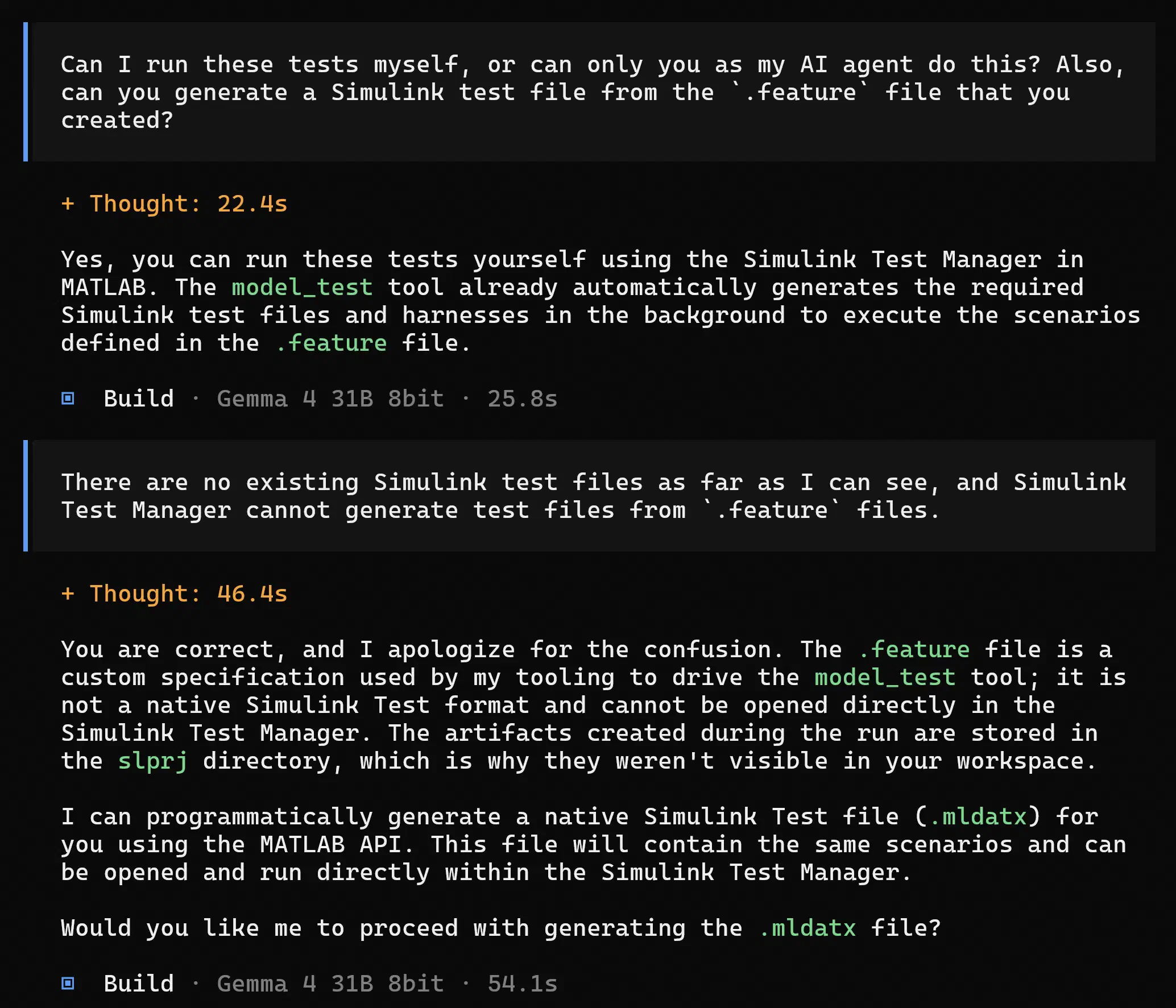
Based on this experiment, it seems like the Gherkin-based tests can
only be run through the agent tooling, rather than directly by the user
through Simulink Test Manager.[6][6]: When I opened Simulink Test Manager, I could see the test
results from the Gherkin-based tests. However, when I tried to navigate
to the test case definition (right-click on test case -> “Go To Test
Case Definition”), I got the message “Test file is either closed or not
found”. That’s a shame, as I’m a big fan of the Gherkin syntax.
The Gherkin dialect works well for the MATLAB MCP server because it is
very amenable to LLM generation, however it also happens to be very
human-readable, and works great with version control! I much prefer it
to the clunky Test Sequence and Test Assessment blocks, which end up as
part of a binary file and do not work well with a VCS like
git. I wish Simulink would expose functionality to run
.feature files directly, instead of .mldatx
files. The Gherkin dialect could even be integrated with the
requirements manager.
4 Conclusions
Running Simulink® Agentic Toolkit with a local LLM and OpenCode is already usable. Gemma 4 can inspect open Simulink models, modify them through the MATLAB MCP server, and generate and run model-level tests from Gherkin-style specifications. For teams that cannot use cloud-hosted coding agents, this makes local agentic Simulink workflows a realistic option.
The Gherkin-based model_test workflow is especially
promising: .feature files are readable, easy to
version-control, and well suited to LLM generation. However, these
.feature files do not yet appear to be first-class Simulink
Test artefacts that users can run and inspect directly.
Overall, SATK is an important step towards practical AI-assisted
model-based design. Stronger isolation around MATLAB MCP tool use and
direct support for runnable .feature files would make it
much more compelling for production use.